
01 / THE OPERATING QUESTION
What should shop-floor data collection software capture?
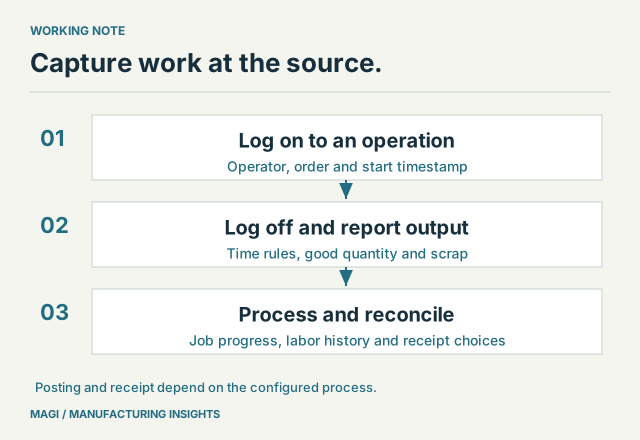
Shop-floor data collection software should connect work to the right manufacturing order, operation and operator, capture when that work starts and stops, and record output and scrap. A useful system collects those facts at the point of work and carries them through the controls needed for job progress, labor history and costing.
In MAGI, operators can use RF transactions for Operation Logon and Operation Logoff. They identify the job and themselves through a compact operator screen suited to an RF scanner workflow. MAGI records transaction timestamps and supports calculated elapsed time, so reporting production need not mean reconstructing every interval at the end of a shift.
The implementation establishes which values come from scans, job records and timing rules, and which the operator supplies. Good quantity and scrap still need a reliable source. A job logon does not, by itself, measure how many physical pieces a machine produced.
The operator transaction should fit the job. MAGI consultants and trained customer employees can maintain supported RF definitions in the running application. Review the workflow customization guide and its live configuration example when deciding who will own changes to the prompts and process.
02 / LESS REKEYING, CLEARER CONTEXT
Separate automatic capture from operator confirmation
Use this checklist to evaluate one work center without assuming that every operator should type every field.
Scroll the table to see all columns →
| Information | MAGI workflow to examine | Acceptance question |
|---|---|---|
| Order, operation and employee | Identify the work and operator in the RF transaction; validate those identities. | Can the operator select the right job when several orders use the same part? |
| Logon and logoff time | Record timestamps when the transactions are processed. | What happens on a repeated scan or a switch to another job? |
| Labor and machine hours | Apply the configured elapsed-time and labor rules. | How are breaks, shared work and unattended machine time treated? |
| Good quantity and scrap | Report production and the applicable scrap reason at logoff. | Are these quantities for this operation, and have they already been reported? |
| Completion and inventory receipt | Make the relevant logoff, completion and receipt choices. | Does stopping work leave the operation open, finish it or receive finished stock? |
The MAGI shop-floor control overview describes manual, interactive and wireless barcode collection. Choose the collection method and device setup for the environment in which the work happens.
03 / INSIDE MAGI
Start with the operator's RF logon and logoff screens
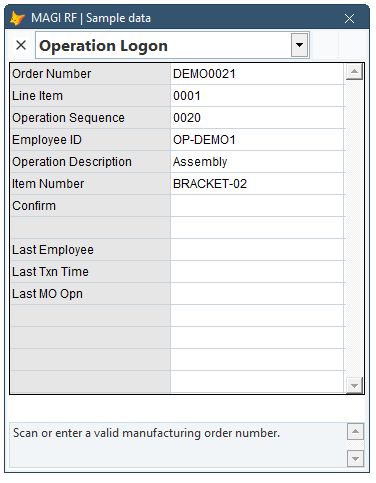
Operation Logon identifies the manufacturing order, line, operation and employee. Its processing checks the inputs before recording the operator's job association and time. MAGI supports settings for multiple operations, a single operation, or a single operation with automatic logoff from the previous work. Those settings should match the work center.
INSIDE MAGI / RF OPERATION LOGON
 Open full-size screenshot ↗
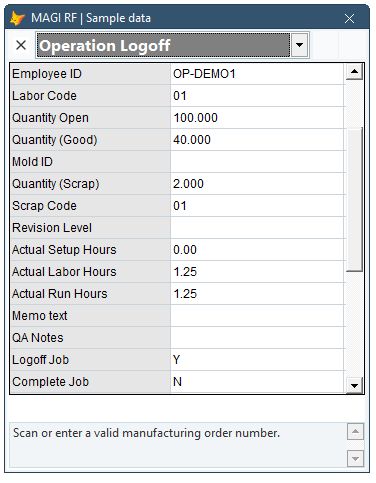
Operation Logoff adds the production result. Its fields include good quantity, scrap quantity and code, setup, labor and run hours, and choices for logging off, completing the job and receiving into the warehouse. The transaction checks relevant job, operator, quantity and other business conditions before processing.
INSIDE MAGI / RF OPERATION LOGOFF
 Open full-size screenshot ↗
The compact field-and-value interface keeps the task close to the operator. Validate the intended handheld's display, scanner input, connection and working conditions during implementation. A desktop capture shows the interface; the device trial establishes how it works in your plant.
04 / ONE SHIFT, INCLUDING THE EXCEPTIONS
Prove the timing rules with a small, exact example
Assume one operator starts one operation at 8:00 a.m. and stops at 9:15 a.m., with no break, overlap, rounding or shift-start adjustment. The interval is 1.25 hours. Have the operator report 40 good pieces and 2 scrap pieces, then inspect the resulting labor and job records. This is an acceptance example, not a customer result.
Next, add the conditions your plant uses: a second operator, an unattended machine, a break, or a switch to another job. MAGI's logon and elapsed-time processing includes configuration that affects these cases. Labor and machine time should not be assumed to match simply because both are measured in hours.
Test a repeat and a switch: scan the same active job again, then start a different job under the intended single-operation or automatic-logoff setting. Confirm the displayed result and inspect the recorded times. A repeated identification should not be mistaken for a second block of work.
Also test an invalid operation and an employee who is not valid for the entry. Identify who corrects an error and how a missed logoff is resolved. A complete operating process includes recovery as well as the normal scan sequence.
05 / CAPTURE MUST REACH THE OPERATING RECORD
Distinguish reporting, posting and finished-goods receipt
MAGI's RF labor-processing path can send work through native labor processing or into data collection for subsequent processing, depending on the configured entry mode. Establish that mode explicitly. An accepted operator input and a posted labor transaction are not interchangeable milestones in every configuration.
Where a review queue is used, MAGI's Manual Data Collection workflow provides entry maintenance, checking and posting. The team should know who owns outstanding entries and when they reach the job and labor records. That review step does not replace the RF operator's capture workflow.
Logging off work, completing an operation and receiving stock have different meanings. In RF logoff, a final-operation receipt depends on the relevant job, quantity, receipt choice and processing settings. Do not count every operation's reported pieces as new finished goods: the same brackets may pass through several operations.
Connect the result to the planned-versus-actual costing review and the production scheduling review. Both need reliable information about completed work and what remains.
06 / A PRACTICAL CONNECTED-MANUFACTURING STEP
Bring an operator workflow to the ERP demonstration
For a replacement ERP evaluation, bring a normal shift, a partial completion and a difficult reporting exception. Demonstrate the operator's scans, automatic timestamps, configured time calculations, reported quantities and resulting records as one connected process.
Let an operator perform the steps on the intended device after appropriate instruction. Check that prompts and confirmations are readable, the scan sequence fits the physical task, and an invalid scan produces an understandable response. Include an interrupted entry and establish how the operator knows whether it needs to be resumed or has already completed. The goal is reliable reporting that fits the job; acceptance on the intended handheld remains part of the implementation.
This is a practical foundation for Industry 4.0 and connected manufacturing. Additional equipment or application connections can be scoped around the same event definitions, validation and duplicate-prevention requirements.
MAGI combines manufacturing ERP with business consulting included in onboarding and available for ongoing improvement. The workflow customization guide explains how to make a different scan sequence, material flow or approval requirement concrete. Request a demonstration using the work your operators need to perform.
Sources & article notes
Prepared by MAGI Manufacturing Insights with AI-assisted research and writing. Product coverage was checked against MAGI information and available software evidence. Numerical examples are illustrative, not customer results. Available options depend on the implementation. Read our editorial process.